




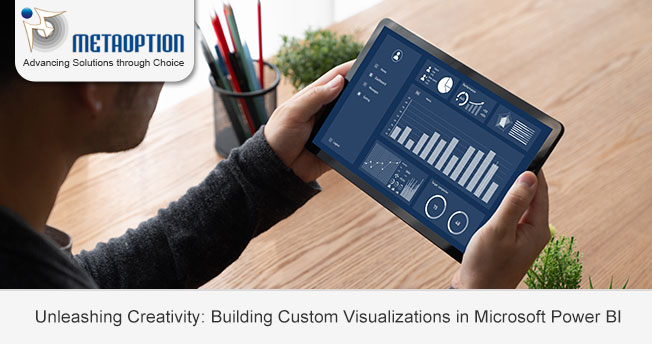
Custom Visualizations in Microsoft Power BI empower users to transform raw data into insightful and interactive visualizations. While Power BI offers a variety of built-in visuals, there are situations where creating custom visuals becomes essential to meet specific business requirements or present data in a unique way. In this blog, we’ll explore how to build custom visuals in Power BI, and unlock new possibilities for creative and effective data representation.
Understanding Custom Visualizations:
Custom visualizations in Power BI are extensions that allow users to go beyond the default charts and graphs. With custom visuals, you can tailor the presentation of your data to match the specific needs of your audience. Power BI supports two types of custom visuals: certified and uncertified. Certified visuals have passed Microsoft’s rigorous testing and are considered reliable and secure, while uncertified visuals are created by the community and may not undergo the same level of scrutiny.
Getting Started:
- Enable Custom Visuals: Before you can start building custom visuals, ensure that the option to use custom visuals is enabled in your Power BI environment. You can find this option in the settings menu.
- Explore the Marketplace: Power BI Marketplace is a treasure trove of custom visuals created by the community and third-party developers. Browse through the marketplace to discover visuals that suit your needs. You can import these visuals directly into your Power BI reports.
Building Custom Visualizations:
- Use Charticulator: Charticulator is a web-based tool that integrates seamlessly with Power BI and allows you to design custom visualizations using a drag-and-drop interface. Once you’ve created your visual in Charticulator, you can import it into Power BI for further customization and integration with your data.
- Developing with Power BI Custom Visual SDK: For developers and those with coding skills, the Power BI Custom Visual SDK provides a platform for building custom visuals from scratch. The SDK supports popular programming languages like TypeScript and allows you to create visuals with advanced functionalities.
- Adapt Existing Visuals: Another approach is to take an existing visual and modify it to meet your requirements. Power BI provides a comprehensive set of APIs and documentation that makes it easier for developers to extend existing visuals or create entirely new ones.
Tips for Success:
- Ensure Data Compatibility: When building custom visuals, it’s crucial to ensure that your visualizations can handle different types of data inputs. Consider scenarios where users might interact with your visual using slicers or filters.
- Follow Best Practices: Adhere to best practices and design principles to create visuals that are visually appealing and effective in conveying information. Pay attention to color schemes, labeling, and overall aesthetics.
- Testing and Validation: Thoroughly test your custom visuals with various datasets to ensure their accuracy and reliability. If you’re building visuals for a broader audience, consider seeking certification from Microsoft to enhance credibility.
Winding Up:
Building custom visualizations in Microsoft Power BI opens up creative possibilities for data presentation. Whether you’re a business user looking to enhance your reports or a developer aiming to craft unique visuals, Power BI’s flexibility and extensibility provide the necessary tools. Explore the marketplace, leverage tools like Charticulator, or dive into coding with the Power BI Custom Visual SDK to elevate your data storytelling and deliver impactful insights to your audience.
For more information and a tailored demonstration contact us today at Metaoption.
