



An item can be defined as stock or Nonstock based on whether it has stock entries associated with it. The Nonstock Item contains information about items that your company sells but does not carry in inventory. When you require to set about keeping these items in inventory, you can convert them to normal item cards in two ways:
1. From a nonstock item card, create a new item card based on a template.
2. From a sales order line of type Item with an empty “No.” field, select a nonstock item. An item card is automatically created for the Nonstock item.
We’ll guide you through how to create and manage a Nonstock Item. Nonstock Items don’t have much information unlike normal item cards because you simply utilize these items to offer on quotes and in other ways. If you want to post sales transactions using these items, you must first need to convert them into normal item cards.
Here’s how:
STEP 1
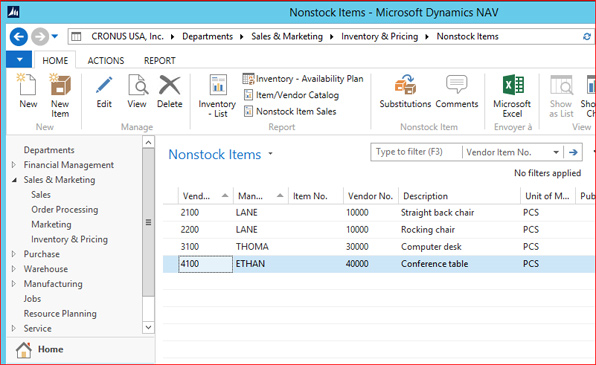
• Go to Departments>Sales & Marketing>Inventory & Pricing>Nonstock Items
• Select ‘New’ action
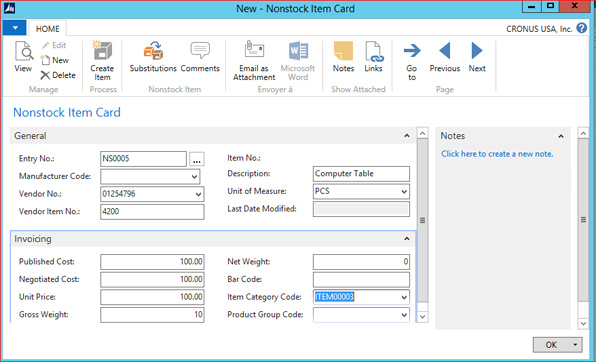
• Fill in the necessary fields then choose a field to create a short description or to link more information
STEP 2
How to setup Nonstock Item numbers to convert to your own numbering
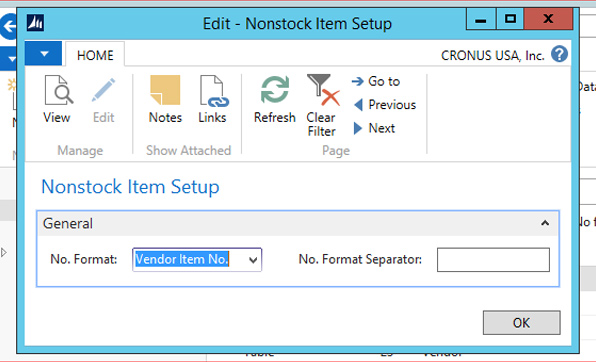
• To enable conversion of a nonstock item card to a normal item card, you must first set up on how the vendor’s item numbering is converted to your own item number format.
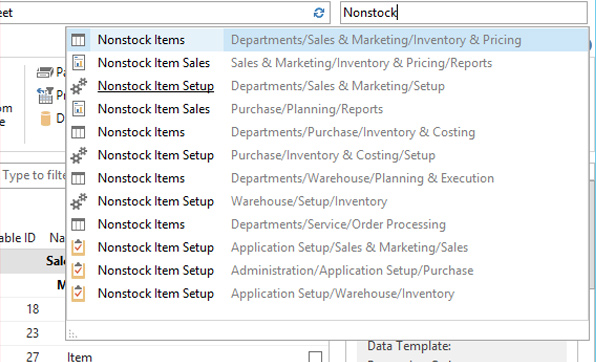
• In the search bar enter ‘Nonstock Item Setup’ and choose the related link
• Fill in the necessary fields then click OK
STEP 3
How to convert a Nonstock Item to a normal item
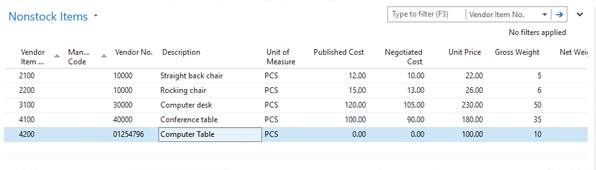
• In the search bar enter ‘Nonstock Items’ then choose the related link
• Open the card for a Nonstock Item that you want to convert to a normal item
• In the Nonstock Item Card window choose the ‘Create Item’ action
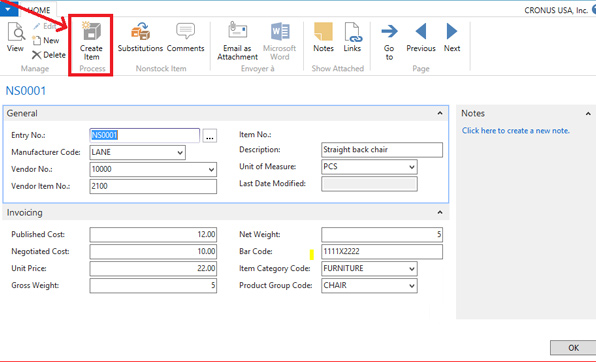
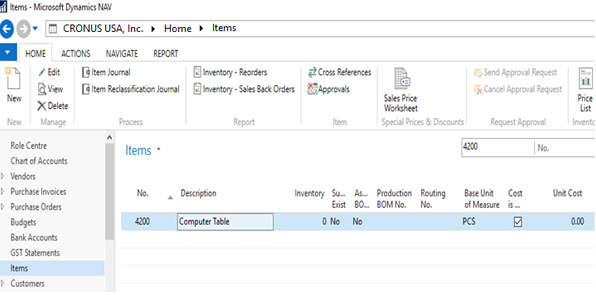
A new item card prefilled with information from the nonstock item and a relevant item template is created. You can then fill or edit fields on the new item card as necessary
STEP 4
How to sell a Nonstock Item and convert it to a normal item
• Go to Departments>Sales & Marketing>Order Processing>Sales Orders
• Select ‘New’ action
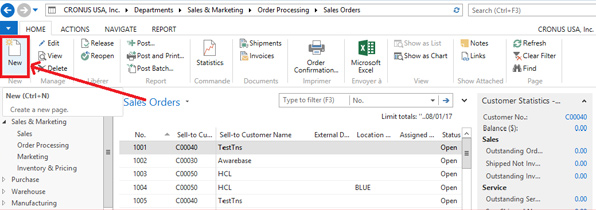
• Fill in the fields in the ‘General’ FastTab as for any sales order
• On a new sales line, in the ‘Type’ field, select ‘Item’, but leave the ‘No’ field empty
• Choose the ‘Line’ action, and then choose the ‘Select Nonstock Items’ action
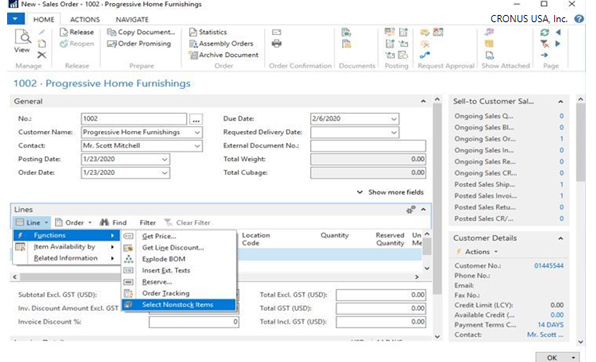
• The Nonstock Item is converted to a normal item
• A new item card will be prefilled with information from the Nonstock Item and the relevant item template is now created
STEP 5
• In the Nonstock Items window select the ‘Nonstock Item that you want to sell’, and then choose the OK button
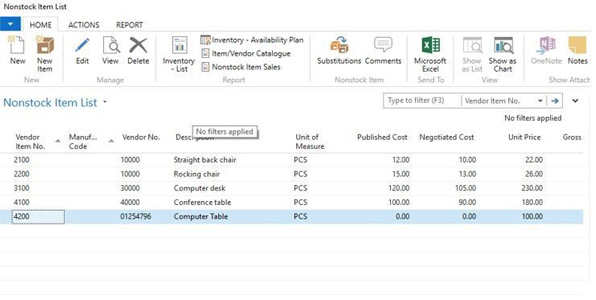
• When the sales order is complete choose the ‘Post action’ and you are done!
Learn more about Microsoft Dynamics NAV.
Explore Microsoft Dynamics 365 Business Central and NAV Add-Ons from MetaOption which helps your businesses and boost your operations efficiently across various industries.
For more information and a tailored demonstration, please contact MetaOption LLC.

